Windows Update failures can disrupt patch cycles, compliance requirements, and security baselines — especially in Windows 10 and Windows 11 Enterprise environments. One recurring issue administrators encounter is Windows Update Error 0x800d0202, typically caused by service misconfigurations, corrupted update components, or system file integrity problems.
This guide provides a complete, field-tested workflow for diagnosing and resolving the error.
What Causes Error 0x800d0202?
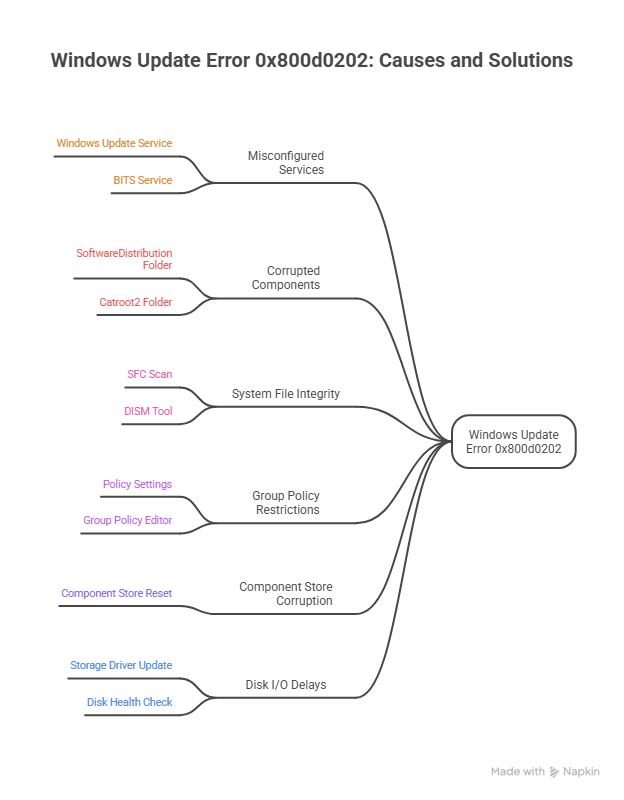
Common triggers include:
- Misconfigured Windows Update services
- Corrupted SoftwareDistribution or Catroot2 folders
- Damaged system files
- Group Policy restrictions
- Component store corruption
- Disk I/O delays or storage driver issues
1. Verify Core Windows Update Services
Ensure the essential update services are running:
Code
sc query bits
sc query wuauserv
sc query cryptsvc
sc query usosvc
If any service is stopped or stuck, updates will fail.
2. Check Windows Update Policies
Enterprise devices often inherit policies from AD or MDM. Incorrect policies can block updates.
Code
reg query "HKLM\SOFTWARE\Policies\Microsoft\Windows\WindowsUpdate"
gpresult /r
Look for:
- WSUS configuration issues
- Disabled automatic updates
- Deferral policies
- TargetReleaseVersion conflicts
Correct any misconfigurations through Group Policy or your MDM platform.
3. Repair BITS (Background Intelligent Transfer Service)
BITS handles update downloads. If misconfigured, updates cannot proceed.
Code
sc config bits start= delayed-auto
net start bits
sc query bits
This ensures BITS starts properly and remains stable.
4. Repair Windows System Components
Two essential tools restore system integrity:
DISM Repair
Code
DISM /Online /Cleanup-Image /RestoreHealth
SFC Repair
Code
sfc /scannow
In the diagnostic session, DISM completed successfully and SFC repaired corrupted files — confirming the system image and core files were restored.
5. Reset Windows Update Cache
Corrupted update cache folders are a major cause of update failures.
Code
net stop wuauserv
net stop bits
net stop cryptsvc

ren C:\Windows\SoftwareDistribution SoftwareDistribution.old
ren C:\Windows\System32\catroot2 catroot2.old

net start cryptsvc
net start bits
net start wuauserv
This forces Windows to rebuild fresh update databases.
6. Investigate Event Viewer for Disk or Storage Errors
Event Viewer is essential for identifying underlying system issues.
Check:
- Windows Logs → System
- Disk-related warnings
- Storage driver issues
- Group Policy errors
Disk health checks performed:
Code
wmic diskdrive get model,status
diskpart -> list disk
chkdsk C: /scan
chkdsk C: /f
The primary NVMe SSD reported OK, and no critical disk issues were detected.
7. Final Steps & Validation
✔ Reboot the system
Allows CHKDSK and service repairs to finalize.
✔ Test Windows Update again
Most systems update successfully after the cache reset + DISM/SFC repair.
✔ Monitor Event Viewer
Ensure no new disk or storage driver errors appear.
✔ Update NVMe/storage drivers
If Event ID 11 or similar errors persist, update storage drivers from the OEM.
Escalation Criteria
If the issue continues:
- Windows Update still fails after reboot
- New disk or storage driver errors appear
- CHKDSK reports file system issues
- DISM fails repeatedly
At this stage, deeper investigation is required — often involving storage drivers, GPO conflicts, or WSUS configuration.
Conclusion
Error 0x800d0202 can be persistent, but with a structured troubleshooting approach — verifying services, repairing components, clearing cache, and checking disk health — Windows Update can be restored reliably on Windows 10 and Windows 11 Enterprise systems.